Write your way.
Start with your own words, in the language you feel most comfortable with.
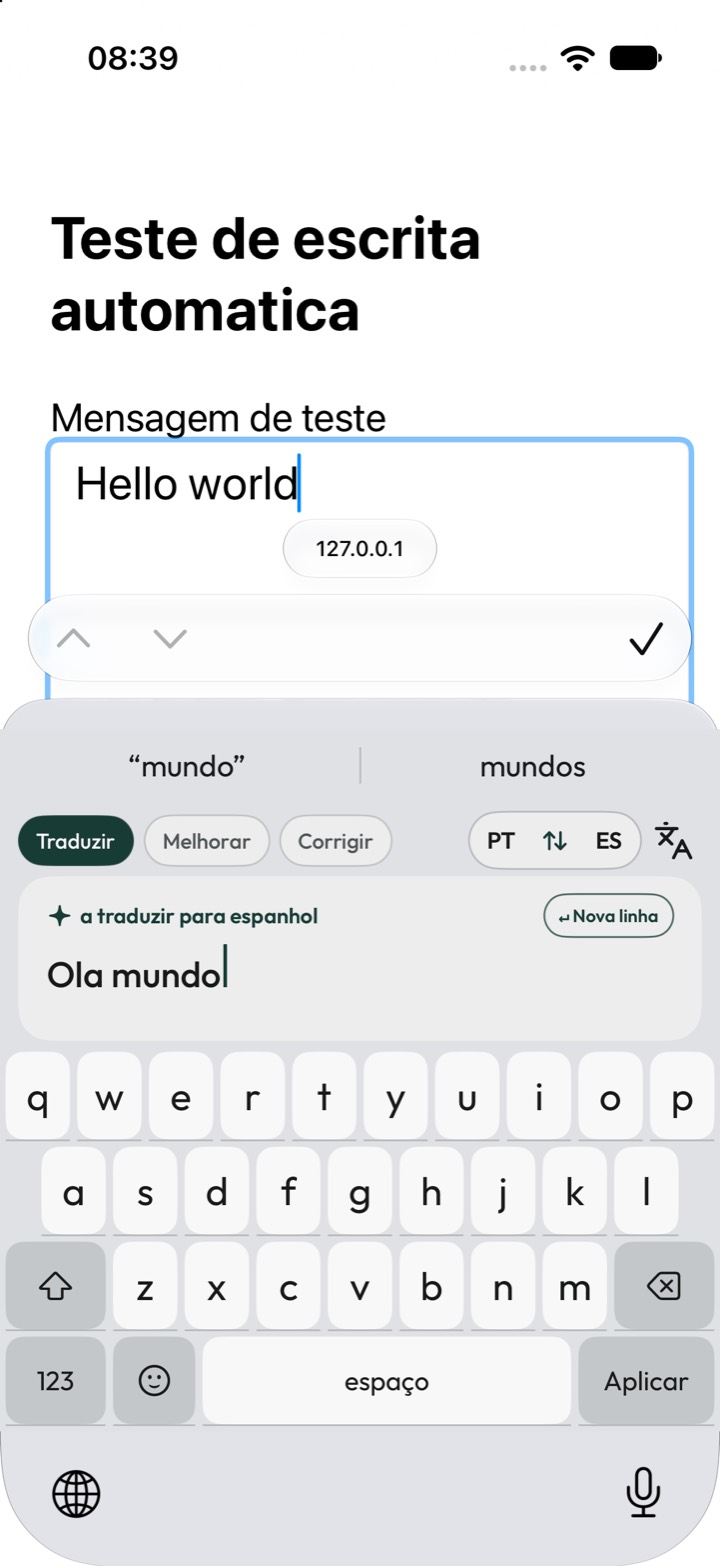
The words are yours. Typelate helps them go further. Translate, improve and correct messages from your iPhone keyboard. You can combine modes, too.
Made for everyday conversations.
One message. Multiple modes together.
Real keyboard in Portuguese · prepared examples
The selected modes work on the same message in a single step.
Keep your train of thought.
Your writing tools are right where the words begin.
Start with your own words, in the language you feel most comfortable with.
Translate, improve or correct. Combine the modes you need and review the result.
Insert your text when it is ready. You always have the final say.
Use more than one mode on the same message. For example, translate into Spanish and improve your wording in a single step.
From a quick thought in English to a more polished message in Spanish.
¡Hola, Sofía! ¿Te apetece tomar un café mañana después de las tres? Me encantaría verte y ponernos al día.
Prepared example. No text is sent to an AI service.
Enable the keyboard in iPhone Settings. AI features require an Internet connection and Allow Full Access.
Includes Portuguese, Spanish, English, French, German, Chinese, Japanese and Arabic. Choose your source and target languages in the app.
Combine Translate, Improve and Correct. Review the result before inserting it into your conversation.
Yes. You can enable more than one mode for the same message, such as Translate + Improve. The result combines the selected operations, and you can review it before using it.
After you install the app, the tutorial guides you through enabling the keyboard in your iPhone Settings. Select Typelate using the globe key.
AI features need an internet connection to process the text in your request. Full Access enables that connection from the keyboard.
In the app, AI requests pass through the Typelate server and the model provider. The server keeps a temporary cache for up to ten minutes. This website demonstration uses prepared examples and does not send text to AI services. This period applies only to the Typelate server cache, not to retention by the model provider.
Apps that allow third-party keyboards. iOS may use the system keyboard in secure fields, such as passwords, and some apps may block third-party keyboards.
No. You review the result and choose when to insert the translation into your message.

Bring Typelate to your conversations. Soon, you will be able to download the app from the App Store and start translating, improving and correcting from your keyboard.
Launching soon.